Learn Go with AI · Free online book
Chapter 1: Learning to Code When AI Can Code
In short: Chapter 1 gets you from nothing to a running Go program. You install Go, start the Tracker project, give your AI assistant a one-line rules file so it teaches instead of writing your code, and go around the SURE loop once with a program that prints a welcome message.
Open any AI coding assistant and type: “Build me an expense tracker in Go.”
Almost every time, the answer starts the same way:
Then comes a wall of code. A hundred lines, maybe two hundred. You copy it, run it, and it might even work.
Now try to answer three questions about it:
- What does line 40 do?
- What happens if the file it saves to is missing?
- If it breaks next week, where would you start looking?
If you can’t answer, you don’t have a program. You have a program someone understands, and that someone isn’t you.
The AI said “Sure!” This book keeps asking you one question back: are you sure?
You’ll use AI from the first page, because that’s how people write code now, but in a way that makes you better at Go. By the end, you’ll have built a small expense tracker, first as a command-line program and then as a web API, and you’ll understand every line of it.
How this book works
Every chapter follows the same loop, the SURE loop. It has four steps:
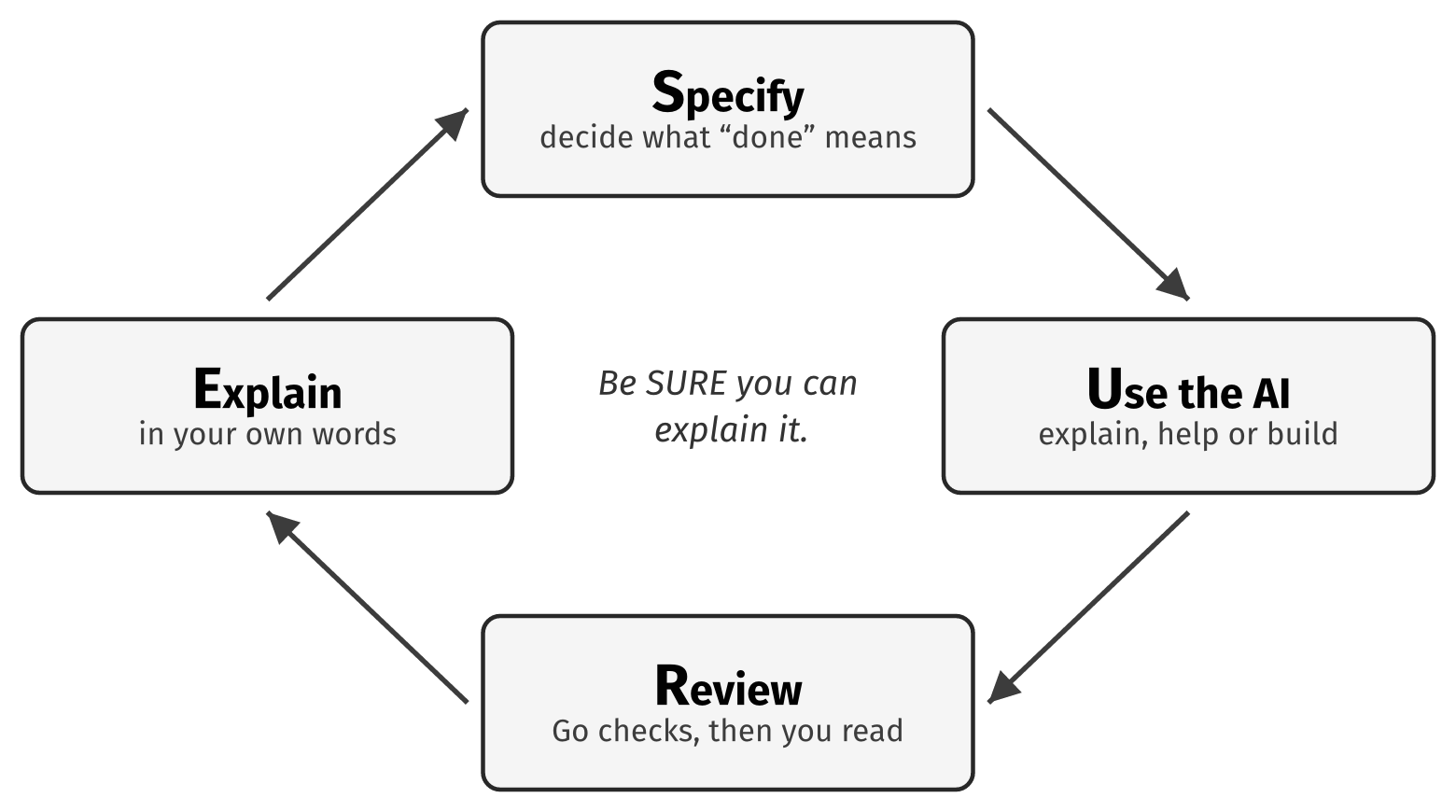
- Specify. Before you talk to the AI, decide what “done” looks like. Write it down.
- Use the AI. Ask the AI to explain, help or build, depending on the chapter. Give it what you wrote down.
- Review. Let Go check the code first: the compiler, the formatter, the tests. Then read the code yourself until you can explain every line.
- Explain. Say what you built in your own words, note what you learned, and let the AI quiz you.
Then you start the loop again with the next feature.
Use the AI and Review get the work done. Specify and Explain are the steps that make you smarter. Most people who use AI skip those two, and that’s why they don’t improve. You won’t skip them.
There’s one rule in this book:
If you hit a line you can’t explain, go back to Use the AI and ask about it until you can. That’s not a failure. That’s the loop working.
The AI’s job changes as you grow
The loop stays the same, but the AI’s job changes:
- Tutor (Chapters 1–3). You type the code. The AI only explains things and answers your questions.
- Pair (Chapters 3–5). You write the code, and the AI reviews it.
- Implementer (Chapters 5–7). You write the tests, the AI writes the code, and you review it.
In this chapter the AI is your tutor. It explains; you type. It might feel slow, and that’s on purpose. Your fingers learn things your eyes skip.
What the book does, and what the AI does
Your AI can explain the basics as many times as you like, so this book doesn’t repeat them. Instead, it gives you what the AI won’t:
- What to learn next, because you don’t yet know which questions to ask.
- What to check, because AI code can run and still hide a problem.
- When the AI is wrong, in a “Where AI gets Go wrong” box in every chapter.
Each chapter has the same parts: Mission, Must know (the few facts the book states itself), the four SURE steps, and an optional Practice exercise.
Mission
By the end of this chapter, you’ll have:
- Go installed and working on your computer
- A project folder for the expense tracker, which we’ll simply call Tracker
- A one-line rules file that tells your AI how to help you
- A first Go program that prints a welcome message
- Your first commit, with a note about what you learned
That’s a small program. The point of this chapter is the loop, not the size of the program. Once you’ve gone around the SURE loop once with something small, every later chapter is the same loop with something bigger.
Set up
You need three tools, a project folder and a rules file.
Install your tools
1. Install Go. Go to go.dev/dl, download the installer for your computer and run it (on Linux, follow the steps on go.dev/doc/install). This book uses Go 1.27.
When it’s done, open a terminal and type:
go versionYou should see something like this (your numbers and system name may differ):
go version go1.27.4 darwin/arm64If you see command not found (on Windows, a message saying 'go' is not recognized), close the terminal, open a new one and try again. Only new terminals see the newly installed Go.
2. Install an editor. Any editor works. If you don’t have a favorite, Visual Studio Code with the official Go extension is free and works well. Appendix A walks through the setup.
3. Set up an AI assistant. The examples use Claude Code, an AI assistant that runs in your terminal. Every prompt in this book is plain English, so any AI coding assistant will do. If you haven’t set one up yet, follow Appendix A now and come back.
Create the project
Make a folder for Tracker and move into it:
mkdir tracker
cd tracker
Now tell Go that this folder is a Go project. Go calls a project a module:
go mod init trackerGo answers:
go: creating new go.mod: module trackerThat command created one file, go.mod. Open it:
module tracker

go 1.27.4
The first line names your module. The second line is the Go version the project needs. It matches the Go you installed, so your number may differ slightly from mine. Leave this file alone; Go manages it for you.
Write the rules file: AGENTS.md
AGENTS.md is a file in your project folder where you write the rules for how the AI should work in this project. Create it in the tracker folder with exactly one line:
I am learning Go (1.27, standard library only): explain things and answer my questions, but do not write or change code unless I ask.That one line tells the AI you’re a learner, pins your Go version and keeps the AI in its tutor role. “Standard library only” means no extra packages: all the code in this book uses only what comes with Go. Appendix A installs two helper tools, but your program never imports anything extra.
Claude Code and many other assistants read AGENTS.md automatically. If yours doesn’t, Appendix A shows how to point it there.
You’ll add to this file as you go. Every time the AI does something you didn’t want, you’ll add a rule so it doesn’t happen again.
Must know
These facts come from the book, not the AI. Everything the AI tells you in this chapter should agree with them. If it doesn’t, the AI is wrong.
- A runnable Go program is
package mainwith afunc main. Go starts running your program atfunc main. - Go is compiled.
go run .turns your code into a program and then runs it. If Go spots a mistake, it stops before running anything and tells you the file and line. - Go refuses unused imports. If you import a package and don’t use it, the program won’t compile. It’s annoying at first, and it keeps your code clean forever.
- Go has one code format. The
gofmttool decides where spaces and tabs go. There’s nothing to argue about. - The AI’s knowledge has a date; your tools don’t. The AI learned from code written before a certain date. When it talks about Go versions or commands,
go versionand the Go website are the truth.
Specify
Before you open the AI, decide what “done” means. One sentence is enough:
Write this in a file called SPEC.md in your project folder. That way you can show it to the AI and find it later.
It’s a lot of ceremony for one line of output, but it’s a habit. As programs grow, “done” gets blurry, and the AI will happily build something slightly different from what you wanted. A clear “done” is how you notice.
In Chapter 2, you’ll turn sentences like this into automated tests, so Go checks “done” for you. For now, you’ll check it with your own eyes.
Use the AI
Open your terminal in the tracker folder and start your assistant. With Claude Code, you type:
claudeThe first time you run it in a folder, Claude Code asks whether you trust the files there. It’s your own project, so say yes.
Your AI is a tutor in this chapter. You’re not asking it to write the program. You’re asking it to teach you what you need to write it yourself. Start with this prompt:
I'm new to Go. Read SPEC.md. Explain what the smallest Go program
that does this needs, part by part. Don't write the whole program;
I want to type it myself.
The answer will be worded differently every time, but it should mention three parts: package main, an import for the fmt package, and a func main that calls a print function. If it talks about setting up GOPATH instead, see the “Where AI gets Go wrong” box later in this chapter.
Now create a file named main.go and type this program yourself. Don’t copy and paste:
package main

import "fmt"

func main() {
    fmt.Println("Welcome to Tracker. Let's see where your money goes.")
}
Type it exactly, including the capital P in Println. Go cares about capital letters.
Run it:
go run .You should see:
Welcome to Tracker. Let's see where your money goes.The . means “the package in this folder.” You’ll use go run . throughout the book.
It works. But right now you have a program that works and maybe a vague sense of why. The next two steps fix that.
Review
Review has two parts: let Go check first, then check it yourself.
Let Go check first
Go comes with tools that catch problems before you even read the code. Run these two commands:
gofmt -l .
go vet ./...
gofmt -l .lists any files that aren’t formatted the Go way. No output means everything is formatted. If it listsmain.go, rungofmt -w main.goto fix it.go vet ./...looks for code that compiles but is probably a mistake. No output means it found nothing. The./...means “this folder and every folder inside it.”
In Go, silence is good news.
Break it on purpose
The compiler is your first reviewer, so it’s worth learning what it sounds like. Make two small mistakes on purpose and read what Go says. (On Windows, the messages show .\main.go instead of ./main.go. That’s normal.)
Mistake 1: a typo. Change Println to Prinln and run go run . again:
# tracker
./main.go:6:6: undefined: fmt.Prinln
Read it from left to right: the file (main.go), the line (6), the column (6), and the problem. The fmt package has nothing called Prinln. Fix the typo.
Mistake 2: an unused import. Delete the whole fmt.Println(...) line, leaving func main() {} empty, and run again:
# tracker
./main.go:3:8: "fmt" imported and not used
That’s Must know #3 in action. Put the line back and run go run . to make sure the welcome message is back.
Compiler errors aren’t insults; they’re directions. Learning to read them is a skill the AI can’t learn for you.
Check it yourself
Every box should be ticked before you move on:
The third box matters most. If any line is still fuzzy, ask your tutor about it:
In main.go, what does the line `import "fmt"` do? What would happen
without it?
Keep asking until you could explain it to a friend. Be SURE you can explain it.
Explain
The program is done. The loop isn’t. This last step is where the learning sticks.
Say it in your own words
Without looking at the AI’s explanations, write three or four sentences about what your program does. Here’s an example. Yours will be different, and that’s the point:
If you get stuck halfway through a sentence, you’ve found exactly what to ask the AI about next.
Let the AI quiz you
Now turn the tables. Ask your tutor to test you:
Ask me two questions about the code in main.go to check that I
understand it. Wait for my answers before you tell me if I'm right.
Answer honestly before you check. If you’re unsure, try it: change the code, run it, read the error, and change it back. For example, if the AI asks what happens when you rename func main to func start, try it. Go stops with function main is undeclared in the main package. That’s Must know #1, straight from the compiler.
Write a Learned: line in your commit
Finally, save your work with Git. Git keeps the history of your project, and its commit messages will become your learning journal.
First time using Git? Install it and set your name and email once (Appendix B shows how):
git config --global user.name "Your Name"
git config --global user.email "you@example.com"
Then run these commands in the tracker folder:
git init
git add .
git commit -m "Print a welcome message" -m "Learned: Go starts at func main in package main, and won't compile with unused imports."
git init may print a few hint: lines about the branch name. They’re safe to ignore.
The first -m is a short title for the change. The second is your Learned: line: one sentence about something you understand now that you didn’t before. Write one with every commit in this book. Later, git log shows your whole learning path.
Update AGENTS.md if something surprised you
Did the AI do something you didn’t want? Maybe it wrote the whole program even though you asked it not to, or its explanation was far too long. Add a line to AGENTS.md, for example:
Keep explanations under 10 lines unless I ask for more.Then commit that change too. Your rules file grows with you, and by the end of the book it’ll describe how you like to work.
Practice (optional)
Make Tracker also print today’s date under the welcome message:
Welcome to Tracker. Let's see where your money goes.
Today is 2026-11-24
Your date will be different. Two hints: you’ll need the time package alongside fmt, and Go formats dates in an unusual way. Ask your tutor, “Explain Go’s reference time for formatting dates. Don’t write my code.” Use the SURE loop, starting with an updated SPEC.md.
Tried it? Compare with the worked answer for Chapter 1.
What you’ve done
You installed Go, created a module, wrote the rules for your AI, and went around the SURE loop once. It was a small program, but it’s the same loop you’ll use for everything else in this book.
In Chapter 2, Tracker will print its first expense and add up a list of amounts, and you’ll turn your SPEC.md sentence into a test, so Go checks “done” for you.
The AI will say “Sure!” again. You’ll know what to ask back.